

Bulk Actions in Recruiterflow: 10 Tasks You Can Run Across Hundreds of Records
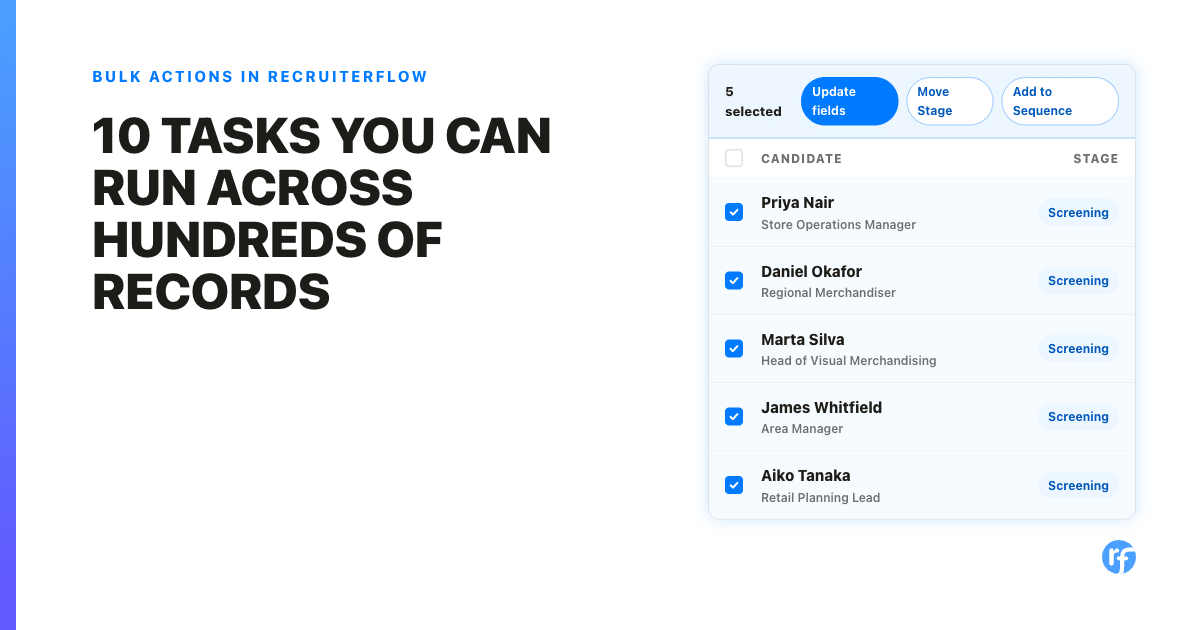
Your firm has just closed a retail search, and 200 candidate profiles need a new tag and a new owner.
Making that change record by record means opening, editing and saving each profile in turn. A bulk action in Recruiterflow applies the same update to all 200 profiles in one step.
45% of recruiters say repetitive administrative tasks contribute to burnout. And it’s easy to see why. Small updates, repeated across hundreds of records, quickly add up. The more time recruiters spend on manual admin, the less time they have for candidate relationships, client conversations and keeping searches moving.
This post covers bulk actions in Recruiterflow: ten tasks you can run across hundreds of records, where to find each one, and the guardrails worth knowing before you click apply.
Where bulk actions live in Recruiterflow
Recruiterflow puts bulk actions in four places:
- List views for Candidates, Contacts, Jobs, Companies and Deals
- The job pipeline, in both Kanban and Table view
- AIRA Source projects, where sourced candidates land
- The Exec Watchlist, inside Job Change Alerts
The pattern is the same everywhere. Tick the checkboxes next to the records you want, and an action bar appears above the list. Pick an action, confirm, done.
One habit makes every task below faster: run an Advanced Search first, then select from the filtered results. You act on exactly the records you mean, not everything on the page.
Also read: Recruitment Automation in 2026: A Recruiter’s Playbook, for a wider view of which recruiting tasks to automate first.
10 bulk tasks you can run across hundreds of records
1. Update up to five fields at once, on any record type
In Recruiterflow, you can bulk-update fields across Candidates, Contacts, Jobs, Companies and Deals. Select the records, click Update fields, pick a field and choose an action.
There are three actions. Add appends a value without touching what is there. Change to replaces the current value. Remove values clears the field. You can stack up to five fields in one operation.
Example: Tag 200 placed candidates “Retail — Placed 2026” and reassign them to a new recruiter, in one pass.
Good to know: Bulk updates apply immediately and can’t be undone in bulk. Remove values clears every value in the field, so use it carefully on tags.
2. Move a stage’s worth of candidates in one step
In Recruiterflow, you can move a group of pipeline candidates to a new stage together. Bulk actions work in both Kanban and Table view.
In Table view, click a stage in the stage bar, tick the candidates you want, and choose Move Stage. You can also select candidates and drag them to the target stage.
Good to know: Bulk actions work on candidates from one stage at a time. Your selection clears if you change the stage filter, so finish one batch before starting the next.
3. Disqualify a batch of candidates
In Recruiterflow, you can disqualify several pipeline candidates at once. They move to the Disqualified group together, so the active pipeline stays clean.
Example: The client tightens the brief mid-search. Thirty sourced profiles no longer fit. Select them, choose Disqualify, and the pipeline reflects reality again in seconds.
4. Find emails and phone numbers in bulk
In Recruiterflow, you can run Email & Phone Lookup on selected pipeline candidates in one action. It finds contact details for the whole batch instead of one profile at a time.
This is the step that usually stalls outreach. A shortlist is ready, but half the profiles have no way to reach the person. Running the lookup in bulk closes that gap before the first message goes out.
5. Enroll a group into multichannel sequences
In Recruiterflow, you can add selected candidates or contacts to a sequence straight from a list view, a job pipeline, an AIRA Source project or the Exec Watchlist. The multichannel sequences engine then runs email, LinkedIn, SMS and task steps from inside the CRM.
Example: Ten candidates have sat in screening for a week. Click that stage, select all ten, choose Add to Sequence, and the follow-up starts.
Good to know: Add to Sequence follows the same bulk limits as everywhere else in Recruiterflow.
Also read: Setting Up Multi-Channel Sequences on Recruiterflow: A Step-by-Step Guide, to build the sequence your selected candidates are enrolled into.
6. Clone candidates as contacts, or contacts as candidates
In Recruiterflow, you can clone a batch of candidates into contact profiles, or contacts into candidate profiles, in one action. Recruiterflow processes the batch in the background, so you keep working, and emails you the result when it is done.
Example: You added 60 conference attendees as candidates. Twenty turn out to be hiring managers. Filter the table, select those 20, and click Clone as Contact.
Good to know: Cloning creates new records and leaves the originals untouched. Each action runs in one direction, so you can’t mix candidates and contacts in one selection.
7. Move AIRA Source candidates into your database, a job or a sequence
In Recruiterflow, you can act on several sourced candidates at once inside an AIRA Source project. Choose Add to Database, Add to Job or Add to Sequence.
Two details save cleanup later. Candidates already in your database are excluded from Add to Database automatically, so you don’t create duplicates. And if the project is linked to a job, new candidates go straight into that job’s Sourced stage.
8. Triage Exec Watchlist alerts in bulk
In Recruiterflow, you can process many executive job-change alerts in a single step. In the New tab of the Exec Watchlist, select alerts and choose one of three actions:
- Accept Job Change for people already in your database
- Add to Database for people who aren’t yet
- Dismiss for alerts that don’t matter
The Exec Watchlist sits inside AIRA Job Change Alerts, which keeps your database current as people move roles.
Good to know: Accepting job changes in bulk writes the new titles and companies to every matched contact at once. Check your selection before you confirm.
Also read: How to Keep Your Recruitment Database Updated with Recruiterflow, for the full Job Change Alerts workflow behind the Exec Watchlist.
9. Follow up on accepted job changes in bulk
In Recruiterflow, you can act on accepted Exec Watchlist alerts as a group. From the Accepted tab, choose Add to Sequence, Send Email, Create Task or Update fields.
A job change is one of the warmest business development signals a firm gets. A former candidate is now a VP. A contact just joined a target account. Bulk follow-up turns twelve of those signals into twelve next steps, instead of twelve tabs left open.
Also read: Recruitment Business Development Playbook For Trigger-Based BD, to turn job-change signals into a repeatable business development process.
10. Move data in and out: reusable imports and custom exports
In Recruiterflow, you can bulk-upload records from a spreadsheet and reuse a previous field mapping for the next import. Repeat imports skip the setup entirely.
Going the other way, you can export data and choose which columns appear in your jobs export. Client reports and leadership reviews come out shaped the way you need them.
Recruiterflow bulk actions at a glance
Here are all ten bulk tasks in Recruiterflow and where to find each one.
| Bulk task | Where it lives |
| Update up to five fields | List views |
| Move candidates between stages | Job pipeline |
| Disqualify candidates | Job pipeline |
| Find emails and phone numbers | Job pipeline |
| Enroll in multichannel sequences | Lists, pipeline, AIRA Source, Exec Watchlist |
| Clone candidates and contacts | List views |
| Add sourced candidates to database or jobs | AIRA Source |
| Triage job-change alerts | Exec Watchlist |
| Follow up on accepted job changes | Exec Watchlist |
| Import and export records | Import and export tools |
Before you run a bulk action: three habits that prevent cleanup
Bulk actions save the most time when you never have to reverse one. Three habits cover almost every mistake.
Filter first, then select. The select-all checkbox in list views covers only the profiles on the current page. Run an Advanced Search to narrow the set, then select from those results.
Add or replace, decide before you click. Use Add when you are stacking a value on top of what is there. Use Change to only when you mean to overwrite.
Know what can’t be undone. Field updates and bulk job-change acceptance apply immediately and can’t be reversed in bulk. Cloning is the safe one: it creates new records and never touches the originals.
Bulk actions vs. Recipes: when to click and when to automate
Use a bulk action when the change is a one-off. A closed search, a tightened brief, a conference list to clean up: you see the batch, you act on it, you move on.
Use Recipes when the same change should happen every time a trigger fires. If you find yourself running the same bulk update every Friday, that is a rule waiting to be written once.
The two work best together. Bulk actions clear the backlog you have today. Recipes stop the same backlog from building up again.
Frequently asked questions
Can I undo a bulk update in Recruiterflow?
No, bulk field updates can’t be undone in bulk. They apply the moment you click Update fields. Double-check your selection and values first.
How many fields can I update at once?
Up to five. Set the first field and action, then click + Add more to stack the rest. All changes apply together.
Can I select records across multiple pages?
The select-all checkbox covers only the current page. To act on a larger set, filter it with Advanced Search first, then select from the results.
Do pipeline bulk actions work in Kanban view?
Yes. Bulk actions on the pipeline work in both Kanban and Table view. In either view, they apply to candidates from one stage at a time.
Does cloning a candidate as a contact delete the original?
No. Cloning creates a new record and leaves the original exactly as it was. Any records that fail to clone are listed in the result email.
Put recruiter time where it earns revenue
Each task above replaces repetitive, record-by-record work with a single, controlled action. The time saved goes back to client conversations, candidate relationships and the judgement no software can replace.
Total Aviation automated around 118,000 messages and saved 980 hours with four recruiters. Recruiterflow is rated 4.8/5 on G2 and Capterra.
Want to see bulk actions on your own pipeline? Book a Recruiterflow demo and bring the task that eats most of your week.
Software and Tools


15 min read